How to Fix GB WhatsApp Not Working: Complete Troubleshooting Guide 2026
Why GB WhatsApp Sometimes Stops Working
GB WhatsApp apk is a remarkably stable and reliable application for the vast majority of its tens of millions of users worldwide. However, like any software official or modified it can occasionally run into issues that affect performance, connectivity, or basic functionality. The good news is that the overwhelming majority of GB WhatsApp problems have straightforward solutions that any user can apply without technical expertise.
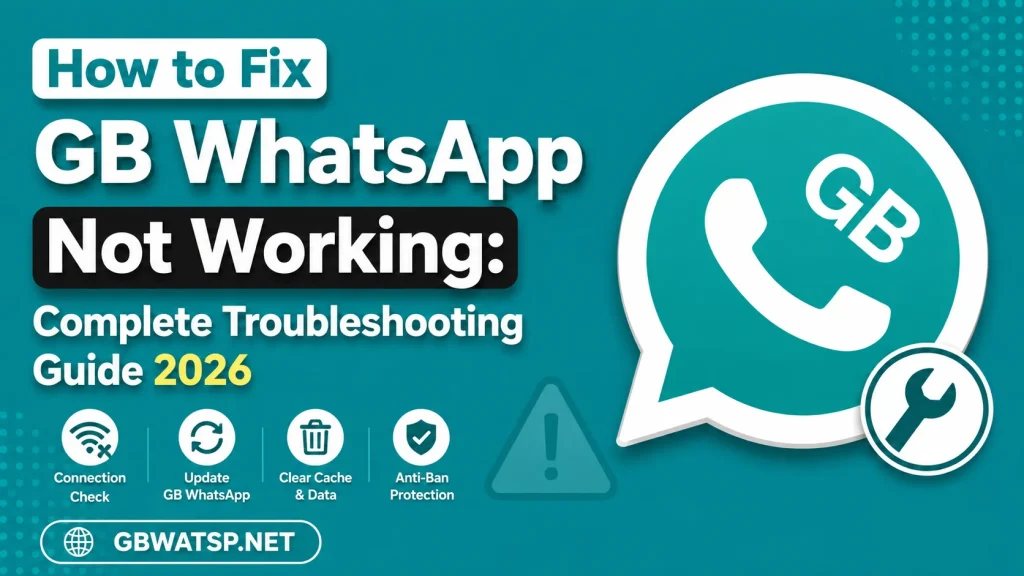
This comprehensive troubleshooting guide covers every common GB WhatsApp issue reported by users in 2026 and provides clear, step-by-step solutions for each one. Always make sure you are running the latest verified version from GBWATSP.NET before attempting any troubleshooting, as many reported issues are resolved simply by updating to the current stable build.
Problem 1: GB WhatsApp Not Connecting to Internet
This is one of the most commonly reported issues and usually has a simple cause. First check that your device has an active and working internet connection by opening another app that requires data. If other apps connect normally, the issue is specific to GB WhatsApp.
Check whether DND mode is enabled in GB WhatsApp Settings if it is, this will intentionally block GB WhatsApp’s internet access. Disable DND mode and try reconnecting. If DND is not the issue, clear the GB WhatsApp app cache from your device Settings under Apps, then force stop and relaunch the app. If the problem persists, uninstall and reinstall the latest version from GBWATSP.NET.
Problem 2: App Not Installed Error
This error appears during installation and almost always has one of four causes. Insufficient storage space is the most common free up at least 300 MB and try again. A corrupted APK file is the second most common cause delete the downloaded file and download a fresh copy from GBWATSP.NET. An existing conflicting installation of another GB WhatsApp variant may also cause this error uninstall any other version before installing. Finally confirm that Unknown Sources or Install Unknown Apps is enabled in your device Security settings.
Problem 3: GB WhatsApp Keeps Crashing
Repeated crashes usually indicate either an outdated version or a corrupted installation. First update to the latest version available on GBWATSP.NET. If crashes persist after updating, clear the app cache from device Settings, force stop the app, and relaunch. If crashing continues, back up your chats through Settings then Chats then Chat Backup, uninstall GB WhatsApp completely, download a fresh APK from GBWATSP.NET, reinstall, and restore your backup.
Problem 4: Messages Not Sending or Delivering
If messages are stuck on a single tick or simply not sending, check your internet connection first. If connectivity is fine, check whether you have accidentally enabled DND mode. Clear the app cache and try again. If the issue affects only one specific contact, ask them to check their own connection and WhatsApp status. If messages are not sending to anyone, update to the latest GB WhatsApp version from GBWATSP.NET as connection issues are frequently resolved in new releases.
Problem 5: Verification Code Not Arriving
If the OTP verification SMS is not arriving during setup or after reinstallation, wait two full minutes before requesting it again. Check that the phone number you entered is correct with the right country code. Ensure your SMS inbox is not full. Request the code via call instead of SMS if the text message does not arrive within three minutes. If you are using a VoIP number or virtual number, note that WhatsApp verification does not support all VoIP services.
Problem 6: GB WhatsApp Account Temporarily Banned
A temporary ban notice from WhatsApp is alarming but usually reversible. If you receive a ban notification, first enable the anti-ban setting in GB WhatsApp Settings if it was not already active. Wait 24 to 48 hours and attempt to verify your number again. In most cases temporary bans lift automatically within this period. If the ban persists beyond 72 hours, contact WhatsApp support directly through the official channel and appeal the restriction. Always keep GB WhatsApp updated to the latest anti-ban protected version on GBWATSP.NET to minimize future risk.
Problem 7: Media Not Downloading
If images, videos, or documents are not downloading from chats, first confirm your internet connection is working. Check your device storage if it is full, downloads will fail. Go to GB WhatsApp Settings then Storage and Data and confirm that auto-download settings are configured correctly for your preferred connection type. Clear the app cache and try downloading again. If specific media files consistently fail to download, the files themselves may be corrupted on the sender’s end.
Problem 8: Notifications Not Showing
Missing notifications are usually caused by battery optimization settings on your Android device aggressively killing background processes. Go to your device Settings, find GB WhatsApp in the Apps list, and disable battery optimization for it. Also check that notification permissions are fully enabled for GB WhatsApp in your device notification settings. On some Android versions, you may also need to allow GB WhatsApp to run in the background from the device’s App Management settings.
Final Thoughts
Most GB WhatsApp issues are temporary, have simple solutions, and resolve quickly once the right steps are followed. The single most effective preventive measure is always keeping GB WhatsApp updated to the latest stable version available on GBWATSP.NET, as the majority of reported bugs and connection issues are addressed in each new release before they affect large numbers of users.